Fully Local Transcribe › Guides
How to transcribe audio offline on Windows
Key takeaways
- Windows can't transcribe audio files by itself. Its voice typing is for live dictation only.
- To transcribe files offline, you need a speech model that runs on your PC — usually OpenAI's open-source Whisper.
- You can build it yourself (free, technical), use a free front-end, or use a finished app that bundles everything.
- A GPU is optional. A modern 4-core PC with 8 GB of RAM is enough to start.
- Names and jargon decide accuracy more than anything — look for a custom vocabulary.
Why transcribe offline at all?
Most transcription services work by uploading your audio to their servers. That's fine for a podcast, but not for a patient interview, a client call or an HR hearing. Once a recording leaves your PC, you have to think about contracts with the provider, where its servers are, and how long it keeps your data. Offline transcription avoids all of that: the audio is processed on the computer it's already on.
There are practical upsides too. Nothing is billed per minute, there's no upload wait for long files, and it keeps working on a train, on a plane or on a network with no internet access.
Your three options on Windows
1. Build it yourself with open-source Whisper
Whisper is a free speech-recognition model released by OpenAI. Developers run it through projects such as the original
whisper Python package, faster-whisper or whisper.cpp. It costs nothing and you control
every setting — but you'll install Python or build tools, download model files, work in a command line, and set up GPU
drivers yourself if you want speed. Editing transcripts, speaker labels and summaries are separate projects.
2. Use a free desktop front-end
Several free apps put a window on top of Whisper. They're easier than the command line and fine for occasional use. Before you rely on one for confidential work, check two things: whether it can send audio to a cloud service (some offer an online mode alongside the local one), and whether it's still maintained.
3. Use a finished offline app
A packaged app bundles the model, the editor and the extras, and is supported by its maker. That's the approach of Fully Local Transcribe: unzip, run, and transcribe — with the Whisper large-v3 model already included.
| Build it yourself | Free front-end | Fully Local Transcribe | |
|---|---|---|---|
| Setup | Python or build tools, command line | Installer | Unzip and run |
| Speech model | Download separately | Usually downloaded on first run | Included (Whisper large-v3) |
| Editing & speaker labels | Not included | Varies | Built-in editor, AI speaker separation |
| Names & jargon | Manual prompts | Varies | Custom vocabulary that learns from your corrections |
| Cost | Free | Free | 14-day free trial, then a flat license |
Step by step: offline transcription with Fully Local Transcribe
- Download the ZIP from the product page (about 3.0 GB — the speech model is inside, so there's nothing else to fetch later).
- Extract it to a short path, such as
C:\Apps. There's no installer and no administrator rights are needed. - Run the app. If Windows shows a protection screen, choose "More info" and then "Run anyway". The first start takes a little longer while the model loads.
- Pick the language — English, Japanese, Korean or Chinese — or leave it on Auto-detect.
- Drop in a file or record. Open an audio or video file (MP3, WAV, M4A, FLAC, MP4, MOV, MKV, WebM and more), or record a meeting with your microphone and PC audio together.
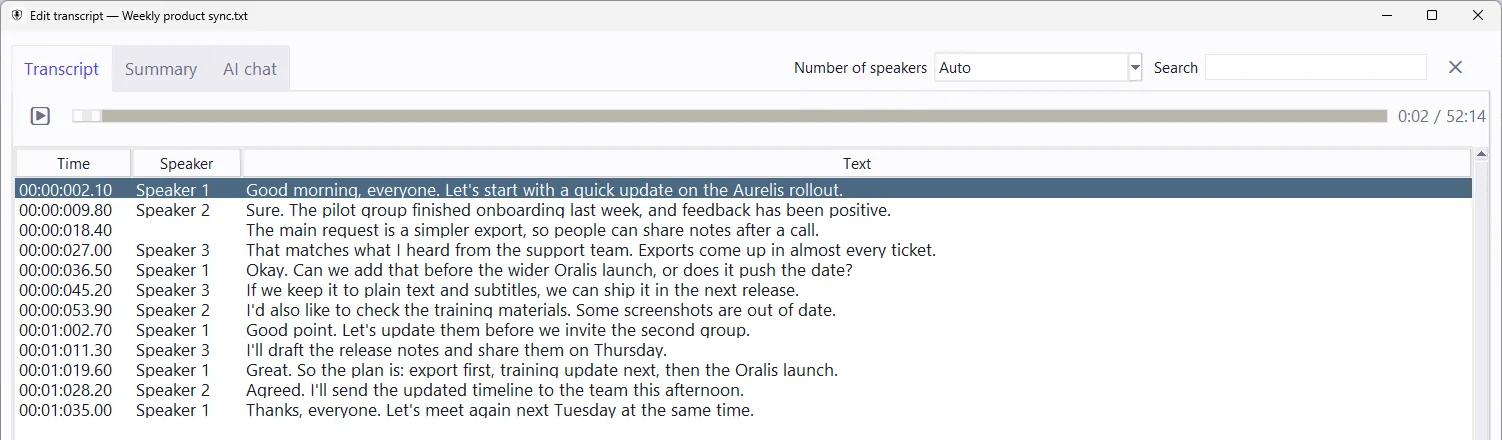
- Edit and export. Fix any misheard names in the editor — they're added to your vocabulary automatically — then save the text or export subtitles (SRT).
What kind of PC do you need?
| Minimum | Recommended | |
|---|---|---|
| Windows | 10 or 11, 64-bit | 10 or 11, 64-bit |
| CPU | 4 cores | 8 cores |
| Memory | 8 GB | 16 GB |
| GPU | Not required | NVIDIA RTX 30 series or newer, with the free GPU pack |
Tips for accurate transcripts
- Record close to the speaker. A headset or a microphone near the speaker beats a laptop mic across the room.
- Choose the language when you know it. Auto-detect works, but setting it removes one source of error.
- Teach it your names and terms. Product names, people and medical or legal terms are where every speech model slips. Correct them once and let the vocabulary do the rest.
- Turn on speaker separation for interviews and meetings, so you can see who said what.
FAQ
Can Windows transcribe audio files offline on its own?
Not in a practical way. Windows has voice typing for live dictation, but it doesn't transcribe existing audio or video files. For files, you need a speech-recognition model that runs on the PC, such as OpenAI's open-source Whisper, either set up yourself or packaged in an app.
Do I need a GPU for offline transcription?
No. Whisper-based transcription runs on a normal CPU. A recent NVIDIA GPU makes it faster. Fully Local Transcribe needs at least 4 CPU cores and 8 GB of RAM (16 GB recommended), and offers a free GPU pack for NVIDIA cards.
Is offline transcription as accurate as cloud services?
It can be. Whisper large-v3, the model Fully Local Transcribe uses, is the same open-source model family that a number of cloud services are built on. What usually decides accuracy is the recording itself and how well the tool handles names and jargon, which is why a custom vocabulary matters.
Try it on your own recordings
Free for 14 days. Nothing to sign up for, and nothing leaves your PC.